

Start with Motion Blur Strength at 0 (Display > Visual Effects), Camera Shake off and Camera Bob turned right down (Camera > Comfort). Then lower Player Status and Hit Effects Intensity, pick the darker Flashbang option and cut the cinematic camera frequencies. On the TV, switch off motion smoothing and use Game mode. There's no field of view slider outside Photo Mode and no 60 FPS mode, so breaks still matter.
Step by step
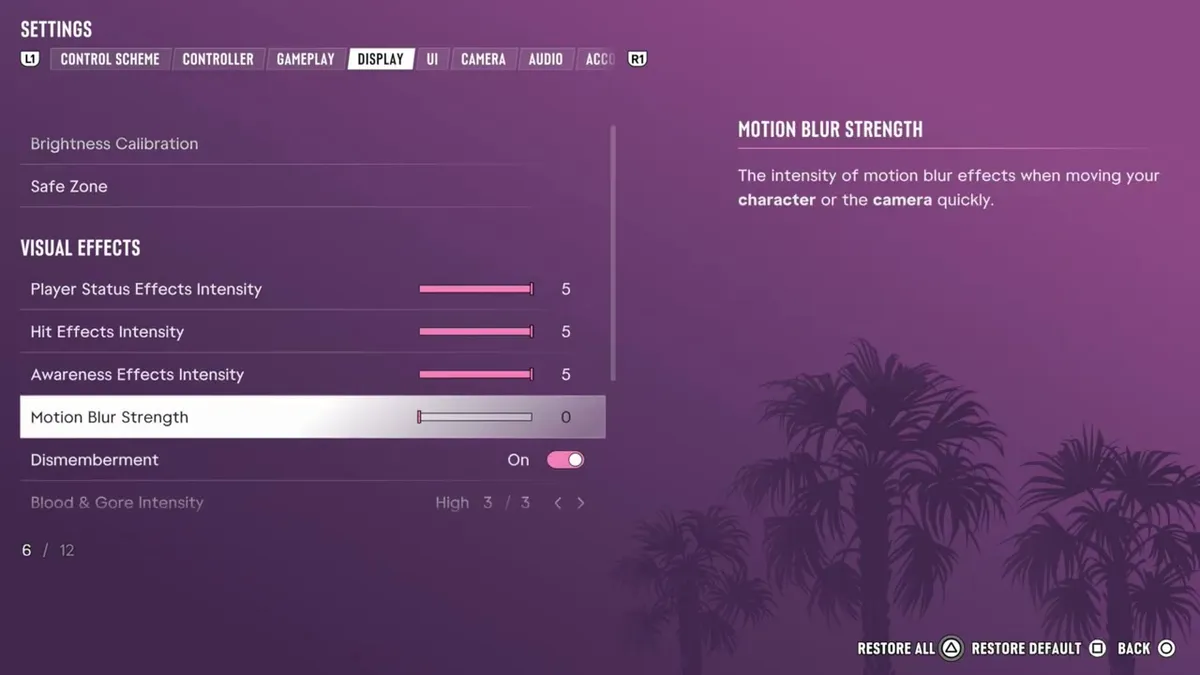
- Pause and open Settings > Display > Visual Effects; set Motion Blur Strength to 0.
- In the same menu, lower Player Status Effects Intensity and Hit Effects Intensity, and choose the darker Flashbang option.
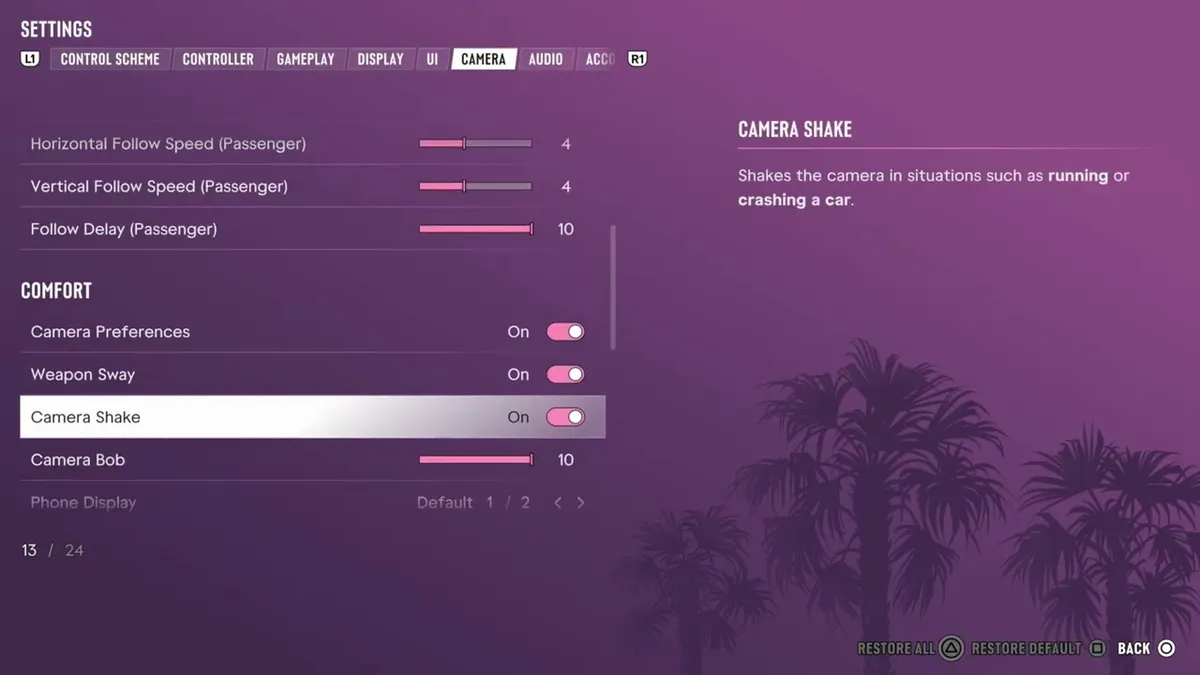
- Go to Settings > Camera > Comfort; turn Camera Shake off and lower Camera Bob to its minimum.
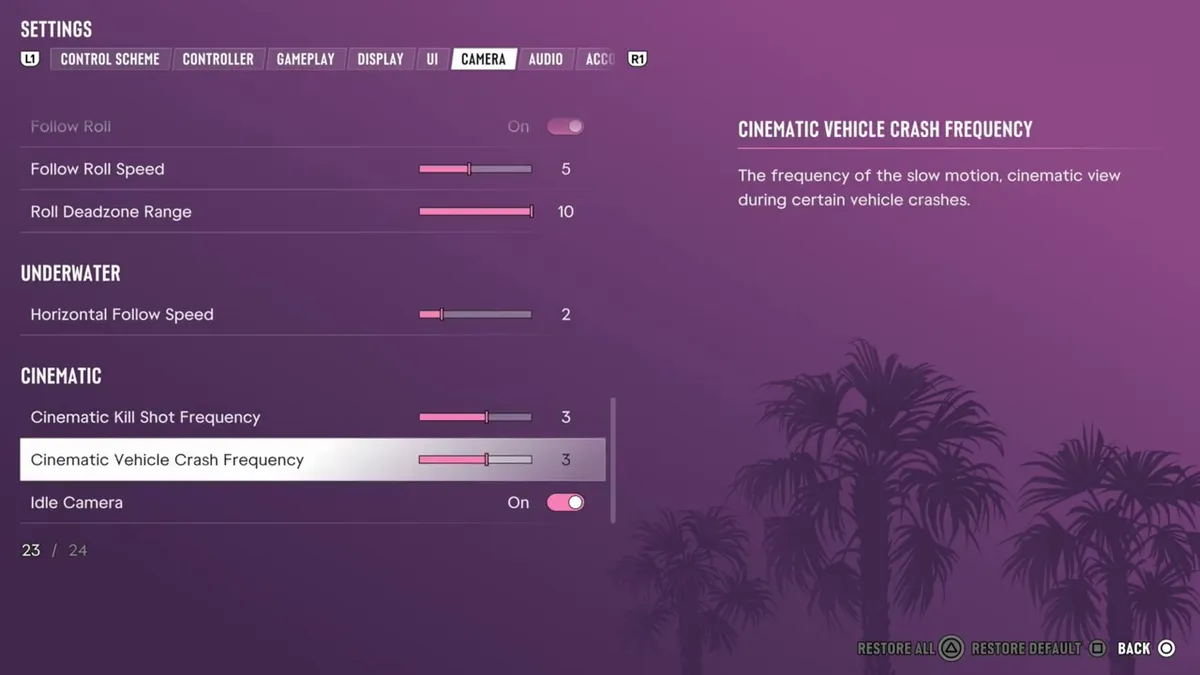
- In Camera > Cinematic, lower Kill Shot Frequency and Vehicle Crash Frequency, and turn Idle Camera off if the drifting camera bothers you.
- On your TV, turn off motion smoothing and use Game mode.
Which settings cause motion sickness?
The usual suspects are the ones that move the picture when you didn’t: blur when the camera turns, shake and bob while you run or drive, and cinematic cameras that cut in on their own. At 30 FPS each of these is more noticeable, and GTA 6 has no 60 FPS mode to soften it. All of them can be turned down.
What should you change first?
Motion blur is the one most players feel first. Out of the box it sits at 3, which smears the whole screen every time you swing the camera. At 0 the picture stays sharp. If 0 makes panning look choppy to you, 1 is a reasonable compromise.
What else is worth a look?
| Setting | Where | Try |
|---|---|---|
| Flashbang | Display > Visual Effects | The darker option, for a less blinding flash |
| Brightness Reduction | Display > Visual Effects | On if bright lights strain your eyes; off if the picture already looks dim |
| Kill Shot Frequency | Camera > Cinematic | Lower, so fewer automatic camera cuts on kills |
| Vehicle Crash Frequency | Camera > Cinematic | Lower, so fewer cinematic cuts when you crash |
| Idle Camera | Camera > Cinematic | Off if the camera drifting when you stand still bothers you |
| Weapon Sway | Camera > Comfort | Off if aiming makes you queasy |
| Follow Speed sliders | Camera tab, on foot and vehicle sections | Lower if the camera swings around too fast behind you |
| Phone Display | Camera > Comfort | Default or First Person; keep Default if the first-person switch feels jarring |
Change one thing at a time. Make a slow camera turn and a short drive after each change. It's the quickest way to find which setting was bothering you.
What about the TV?
Switch off motion smoothing (TruMotion, Motionflow, Motion Plus and similar names). At 30 FPS it inserts fake frames that wobble and add lag. Use Game picture mode, and on an OLED avoid extra processing on top. If dark scenes make you squint, calibrate HDR properly rather than turning the brightness right up: steps are in the best graphics settings for GTA 6.
What can’t you change?
- Field of view. There’s no FOV slider in normal play, only in Photo Mode. For a different viewpoint, you can also force first-person through the controller settings.
- Frame rate. Every console is capped at 30 FPS: does GTA 6 run at 60 FPS.
- The vignette. The dark band at the top of the screen has no toggle: what you can do about the vignette.
If you still feel unwell after changing these, take a break. Long sessions at 30 FPS are the one thing no setting fixes.
FAQ
Can you change the field of view in GTA 6?
Not during normal play. The field of view slider is only in Photo Mode.
Does turning off motion blur help with headaches in GTA 6?
It's the change most players notice first. At 30 FPS the default blur smears the whole picture when you turn the camera, and setting it to 0 keeps it sharp.
Is there a 60 FPS mode to make GTA 6 smoother?
No. Every console runs GTA 6 at 30 FPS, so the comfort settings and your TV setup are what you can change.
What does Brightness Reduction do?
It tones down bright lights. It's off by default; turn it on if bright flashes and headlights are hard on your eyes, or leave it off if the picture already looks dim.